
How to connect a real estate CRM to your calendar

Link a booking page to Google Calendar or Outlook so that visits are automatically scheduled and double bookings are avoided. The principle is simple: a scheduling tool reads your calendar's real-time availability (via freeBusy or getSchedule), then writes the confirmed event as soon as a tenant books. The concrete result: no more double bookings, automatic reminders, and fewer phone calls. Solutions like VisitSync apply this principle specifically to property viewings.
In brief:
- Synchronization via OAuth API allows for instantaneous updates of "busy" or "free" status on Google Calendar or Outlook, thereby reducing the risk of double bookings.
- ICS subscriptions can lead to delays of several hours to reflect changes, which can cause conflicts during close-proximity bookings.
- Correct configuration of the "busy" status in the calendar and verification of compatibility between Google and Outlook are essential to ensure reliable synchronization.
- Precise setting of visit durations, buffers, and booking windows limits errors and optimizes slot management.
- Proactive management of slot locking as soon as they are confirmed prevents conflicting bookings and ensures efficient planning.
Table of contents
- How synchronization works between calendar and online booking
- Step-by-step guide to connecting a booking page to Google Calendar
- Step-by-step guide to connecting a booking page to Outlook or Microsoft 365
- Recommended settings and pitfalls to avoid
- What changes with a solution designed for real estate visits
- Automate appointment booking with VisitSync
- Sources
- Frequently asked questions
How synchronization works between calendar and online booking
Everything relies on a simple concept: the "busy" or "free" status of a slot, called free/busy. Booking software queries your calendar before displaying an available slot to the tenant, which prevents them from booking a time that is already taken.

Google exposes this information via a dedicated API: Google Calendar's freeBusy API returns busy periods for one or more calendars, based on a query indicating a start and end period. Microsoft offers the Outlook equivalent with the getSchedule action, available via Microsoft Graph, which returns an availability view and scheduled items for each queried user.
Two integration modes coexist, with different implications:
- Real-time OAuth API: the booking software connects directly to your Google or Microsoft account, reading and writing events almost instantly.
- ICS subscription: a calendar URL is shared and synchronized periodically, a simpler method but with a longer update delay.
- Combination of both: some tools use OAuth for internal accounts and ICS for external calendars that do not support direct authentication.
This choice has practical consequences. An ICS subscription received by an Outlook.com user can take several hours to refresh, according to Microsoft's documentation on calendar sharing, which creates a risk of conflict if two bookings fall on the same slot between two refreshes. External Outlook permissions also often require explicit consent, and poorly configured time zones remain a frequent source of display errors on the tenant's side.
Step-by-step guide to connecting a booking page to Google Calendar
Connecting Google Calendar to a visit booking tool follows a precise logic, from the account setup to the final test.
- Verify your Google account: Confirm that created events are marked "Busy" and not "Available", otherwise the booking system will not detect conflicts.
- Configure the booking page: Set the duration of each visit, open time slots, a buffer time before and after each appointment, and add questions to ask before the visit (number of people, income, desired move-in date).
- Authorize connection via OAuth: In the chosen software, authorize access to your Google account. This step creates the link that will allow free/busy reading and automatic writing of confirmed appointments.
- Simulate a conflict: Deliberately book two overlapping slots to verify that the second is indeed blocked, then confirm that an event appears correctly on Google Calendar after a successful booking.
- Activate confirmations and reminders: Set up an immediate confirmation email and an automatic reminder the day before or a few hours before the visit.
Google documents this mechanism in its pages on online appointment scheduling, where booking pages directly write the event to the calendar and update availability in real-time as soon as a slot is taken.
Pro tip: Always test a booking from a fictitious tenant account, not just from your own agent account, to identify real friction points in the journey.
Step-by-step guide to connecting a booking page to Outlook or Microsoft 365
Integration with Microsoft requires an initial choice between two architectures depending on your technical environment.
- Determine access mode: a professional Microsoft 365 account generally allows connection via Graph API and OAuth, while a simple personal Outlook.com account will often rely on an ICS subscription.
- Configure calendar sharing: activate sharing from Outlook settings and, if your organization uses a Microsoft 365 tenant, an administrator may sometimes need to approve the application's access to the calendar.
- Test free/busy status retrieval: Run a getSchedule query or verify that the ICS subscription correctly reflects an event marked busy after its creation.
- Control synchronization frequency: for external users linked by ICS, measure the actual update delay rather than assuming it's instantaneous.
The getSchedule documentation on Microsoft Graph specifies that this action can query up to twenty users or resources in a single request, over a period limited to sixty-two days, which is well suited for use by small teams of agents. It also supports application scenarios without direct human intervention, useful for automated background synchronization.
Recommended settings and pitfalls to avoid
A few simple settings prevent most of the problems encountered once the connection is in place.
- Visit duration: Set a standard duration (often 15 to 30 minutes) depending on the property type.
- Buffer before and after: Add a few minutes between two visits to absorb travel delays.
- Booking window: Limit booking to a reasonable timeframe in advance, neither too close nor too far.
- Minimum interval: Impose a minimum delay between the booking time and the appointment time to allow preparation for the visit.
A clear cancellation policy, with quick confirmation requested from the tenant, limits ghost appointments. The most frequent pitfalls remain the same: incorrectly set time zones between agent and tenant, an ICS subscription too slow to reflect a recent change, external Outlook permissions blocked by default, or events marked "private" that never appear in the free/busy calculation.
Pro tip: Lock each slot as soon as a booking is confirmed rather than pending, to prevent any other tenant from still seeing it as available during the processing window.
What changes with a solution designed for real estate visits
A connected calendar solves the technical issue, but the real challenge remains the time saved. Fewer exchanges to set a time means more truly confirmed visits, and therefore more useful slots in an agent's week. Specialized tools like VisitSync add a layer that Google and Outlook alone don't offer: analytical tracking of visits, which helps identify which properties generate the most real interest. Measuring the time saved on coordination and the rate of missed appointments gives a concrete idea of the gain even before changing tools.
— Isac
Automate appointment booking with VisitSync
An agent managing several properties simultaneously quickly loses a considerable amount of time confirming slots via email or text. VisitSync was specifically designed for this profession: booking, synchronization, and reminders work together, without juggling multiple applications.
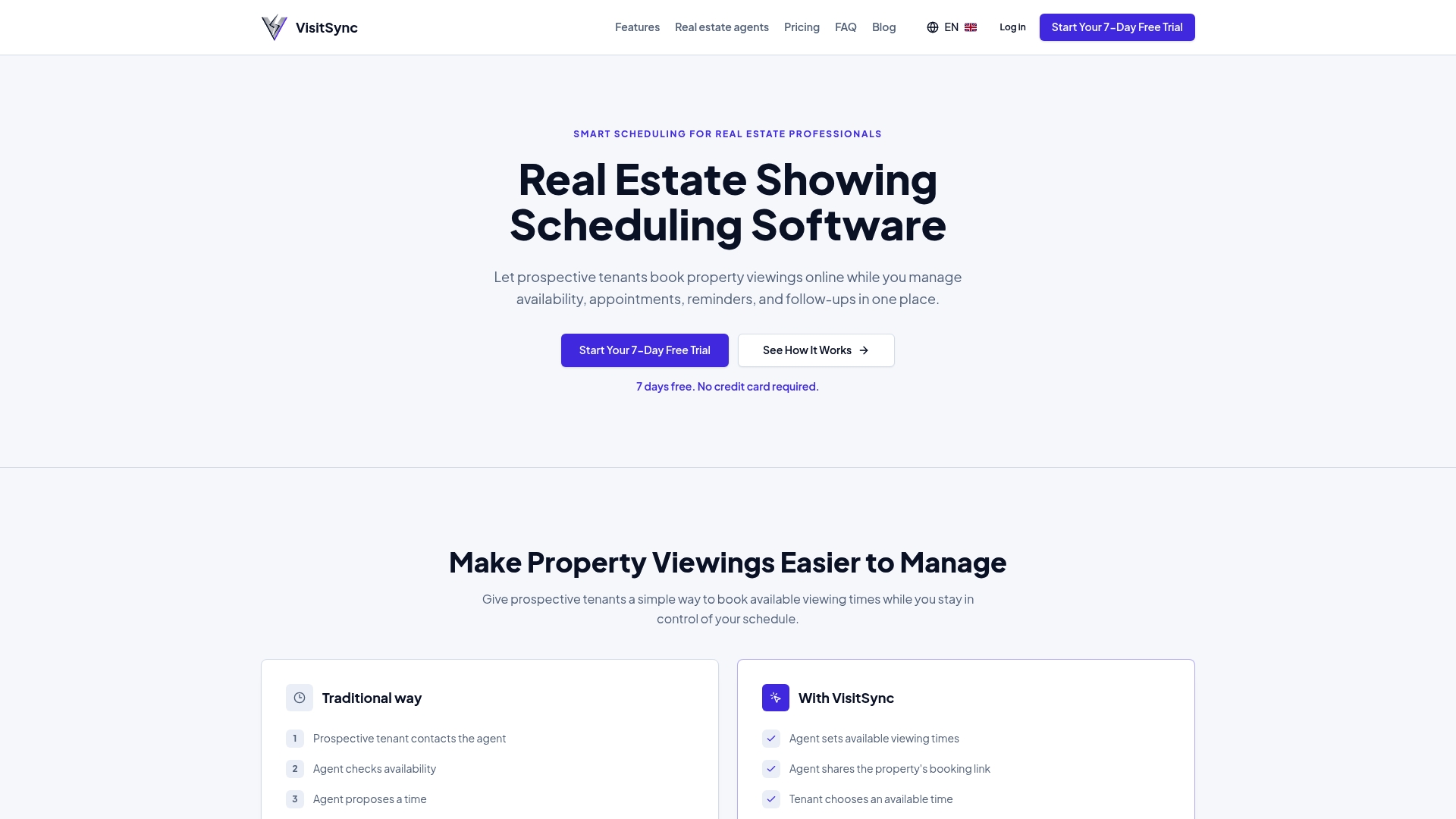
The tool covers the entire journey described above:
- a booking page per property, accessible without account creation for the tenant;
- direct synchronization with Google and Outlook to write each confirmed appointment;
- automatic reminders that reduce missed appointments;
- analytical data on visits to track the performance of each property.
The visit management features detail this functionality, and the page dedicated to real estate agents shows the concrete daily use. Two plans are offered on Visitsync: Essential and Pro plans are offered, each with a free trial to test synchronization on your own properties.
Sources
To delve deeper into the mechanisms discussed, consult the official documentation for Google on freeBusy, Microsoft Graph on getSchedule, as well as VisitSync's product pages for a concrete application to real estate.
- Online Appointment Scheduling with Google Calendar | Google Workspace
- calendar: getSchedule - Microsoft Graph v1.0 | Microsoft Learn
Frequently asked questions
How to avoid double bookings during visits?
The booking software must query your calendar's free/busy status before displaying a slot, via Google's freeBusy API or Microsoft's equivalent getSchedule. An event marked "busy" automatically blocks that slot for any other tenant.
Why does an ICS subscription take time to update?
An ICS subscription depends on the service hosting the recipient calendar, and Microsoft documentation indicates that this delay can be several hours depending on the provider. For near-instant synchronization, an OAuth connection is preferable to a simple ICS subscription.
What is the difference between Google and Outlook synchronization?
Google Calendar uses the freeBusy API while Outlook and Microsoft 365 rely on the getSchedule action via Microsoft Graph, both serving to detect busy slots. Both systems allow for real-time synchronization when the connection is made via OAuth rather than a simple external ICS subscription.
How much does dedicated software for visit appointment booking cost?
At VisitSync, the Essential plan is CAD 19 per month and the Pro plan is CAD 39 per month, with a free trial available on VisitSync. Prices vary depending on providers and included features, such as automatic reminders or visit analytics.